Introduction to WhatsApp Web
In a world increasingly reliant on instantaneous communication, platforms that facilitate seamless connectivity are essential. Among these, WhatsApp Web stands out as a vital tool for millions. By allowing users to extend their messaging experience from mobile devices to desktop and laptop computers, it enhances productivity and ensures that important conversations remain accessible. With the ability to synchronize messages in real time, manage multiple chats, and provide essential security features, WhatsApp Web is not just an extension of the mobile app—it’s an integral part of modern communication. Let's delve deeper into its features, setup process, and security measures to fully understand how it connects the world and enables effortless chatting.
What is WhatsApp Web?
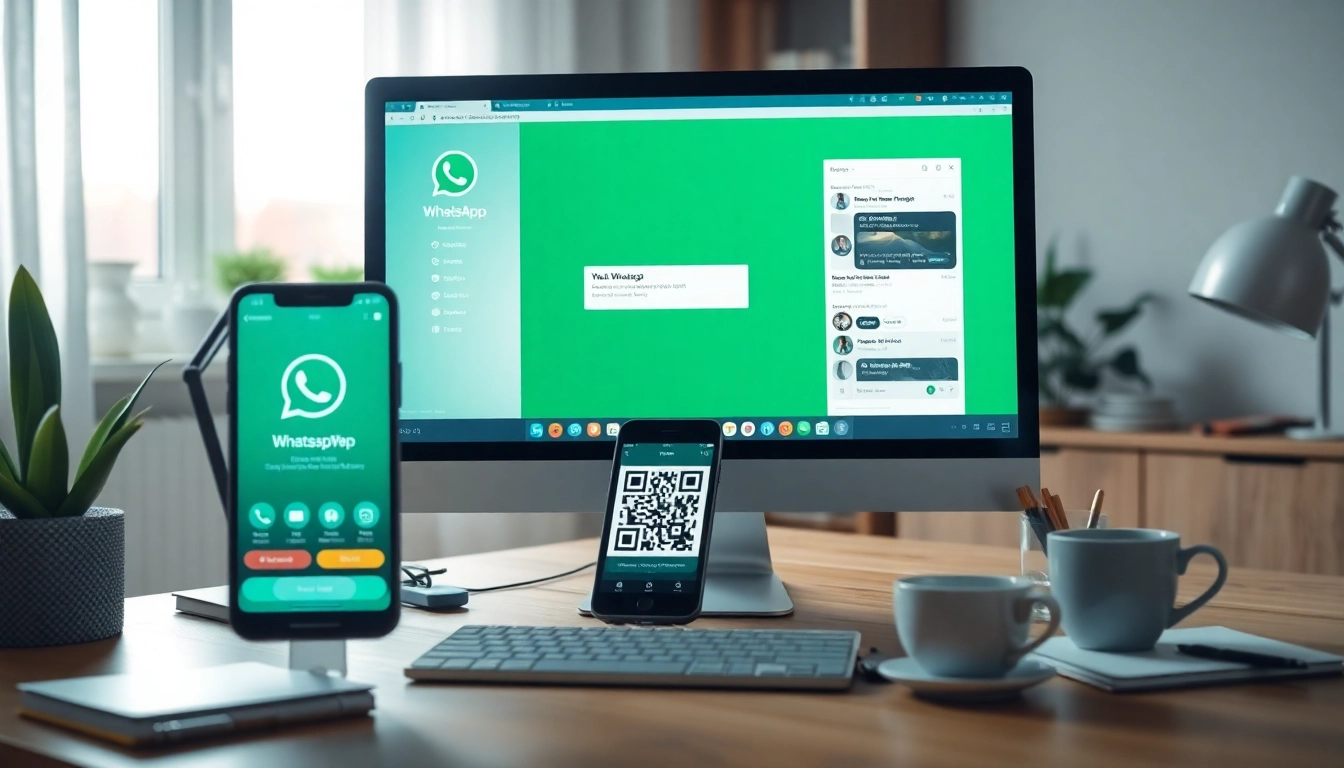
WhatsApp Web is a browser-based platform that mirrors the conversations and messages from the WhatsApp mobile application. By connecting your phone to your computer via a QR code, you can send messages, share files, and engage in voice and video calls directly from your desktop. This functionality eliminates the need to switch back and forth between devices, making it an efficient solution for users who spend significant time on their computers.
Benefits of Using WhatsApp Web
- Enhanced Productivity: Address multiple chats without having to pick up your phone every time a notification arrives.
- Easy File Sharing: Quickly upload and send files directly from your computer.
- Comfortable Typing: Use your keyboard for faster typing and editing of messages.
- Real-Time Synchronization: Messages are updated in real-time across all devices, ensuring that you never miss an important conversation.
Understanding Platform Compatibility
WhatsApp Web is designed to work with most modern web browsers, including Chrome, Firefox, Safari, and Edge. Users can access it at any time by simply navigating to WhatsApp Web and logging in. This cross-platform compatibility ensures that users can stay connected irrespective of their device preference.
Setting Up WhatsApp Web
Step-by-Step Guide to First-Time Setup
Setting up WhatsApp Web is a straightforward process that can be completed in just a few steps:
- Open your preferred web browser and navigate to web.whatsapp.com.
- On your mobile device, open the WhatsApp application.
- Tap on the three dots (Android) or Settings (iOS) to access the menu.
- Select "Linked Devices," then tap “Link a Device.”
- Use your phone to scan the QR code displayed on your computer screen.
- Once scanned, your conversations will sync automatically, and you can begin using WhatsApp Web.
Scanning QR Codes: Connecting Your Devices
The QR code scanning process is fundamental for linking your mobile app with WhatsApp Web. It's essential to ensure that your mobile phone has an active internet connection, or the sync will fail. Also, keep your phone within proximity to the computer during this process for optimal connectivity.
Troubleshooting Setup Issues
Should you encounter issues during setup, here are some common fixes:
- Internet Connection: Ensure both your phone and computer are connected to the internet.
- Browser Compatibility: Verify that you are using a supported browser.
- App Version: Ensure your mobile WhatsApp application is up to date.
Core Features of WhatsApp Web
Real-Time Messaging Synchronization
One of the standout features of WhatsApp Web is its ability to synchronize messages instantly. When you send or receive a message on your phone, it appears on WhatsApp Web in real-time, providing a fluid communication experience and ensuring that you never miss out on messages no matter which device you're using.
File Sharing and Multimedia Support
Another significant advantage of WhatsApp Web is the ease of file sharing. Whether you want to send images, videos, documents, or voice messages, you can do so directly from your computer. This feature is especially useful in professional settings where quick sharing of documents can enhance workflow and communication efficiency.
Managing Multiple Chats on Desktop
WhatsApp Web allows users to manage multiple conversations simultaneously on the same screen. You can switch between chats effortlessly, making it easier to juggle work-related discussions and personal messages all in one interface. This capacity can be particularly beneficial for professionals who need to communicate with various stakeholders at once.
Security Measures on WhatsApp Web
Understanding End-to-End Encryption
WhatsApp Web employs end-to-end encryption, ensuring that only you and the intended recipient can read the messages exchanged. This means that even WhatsApp cannot access your conversations, making it a secure choice for personal and professional communication alike.
Privacy Settings and Account Management
WhatsApp provides users with various privacy settings to manage who can see their profile photo, last seen status, and more. Users can customize these settings according to their preferences to enhance their privacy further.
Recognizing and Responding to Security Alerts
Security alerts are vital for maintaining the integrity of your account. WhatsApp will notify you of any unusual activity, such as logins from unrecognized devices. Always stay vigilant and log out of WhatsApp Web if you use a public computer or shared network, and ensure you log out from all sessions in the app settings if necessary.
Frequently Asked Questions About WhatsApp Web
Common Issues and Solutions
Users occasionally face problems while using WhatsApp Web. Here are a few common issues and their solutions:
- Cannot Scan the QR Code: Make sure your phone camera is functioning and is not obstructed by screen glare.
- Messages Not Syncing: Confirm both your devices are connected to the internet.
- Log-in Issues: Ensure you are entering the correct phone number associated with your WhatsApp account.
How to Ensure a Smooth User Experience
To maximize your experience with WhatsApp Web, maintain a stable internet connection, regularly update both your app and the browser you are using, and familiarize yourself with the privacy settings provided by WhatsApp.
Future Updates and Features to Anticipate in 2026
As WhatsApp continues to evolve, users can anticipate enhancements in functionalities such as improved video calling capabilities, integration with more third-party applications, and potential new features aimed at bolstering security further. Staying updated with these developments ensures that users make the most of their WhatsApp Web experience.